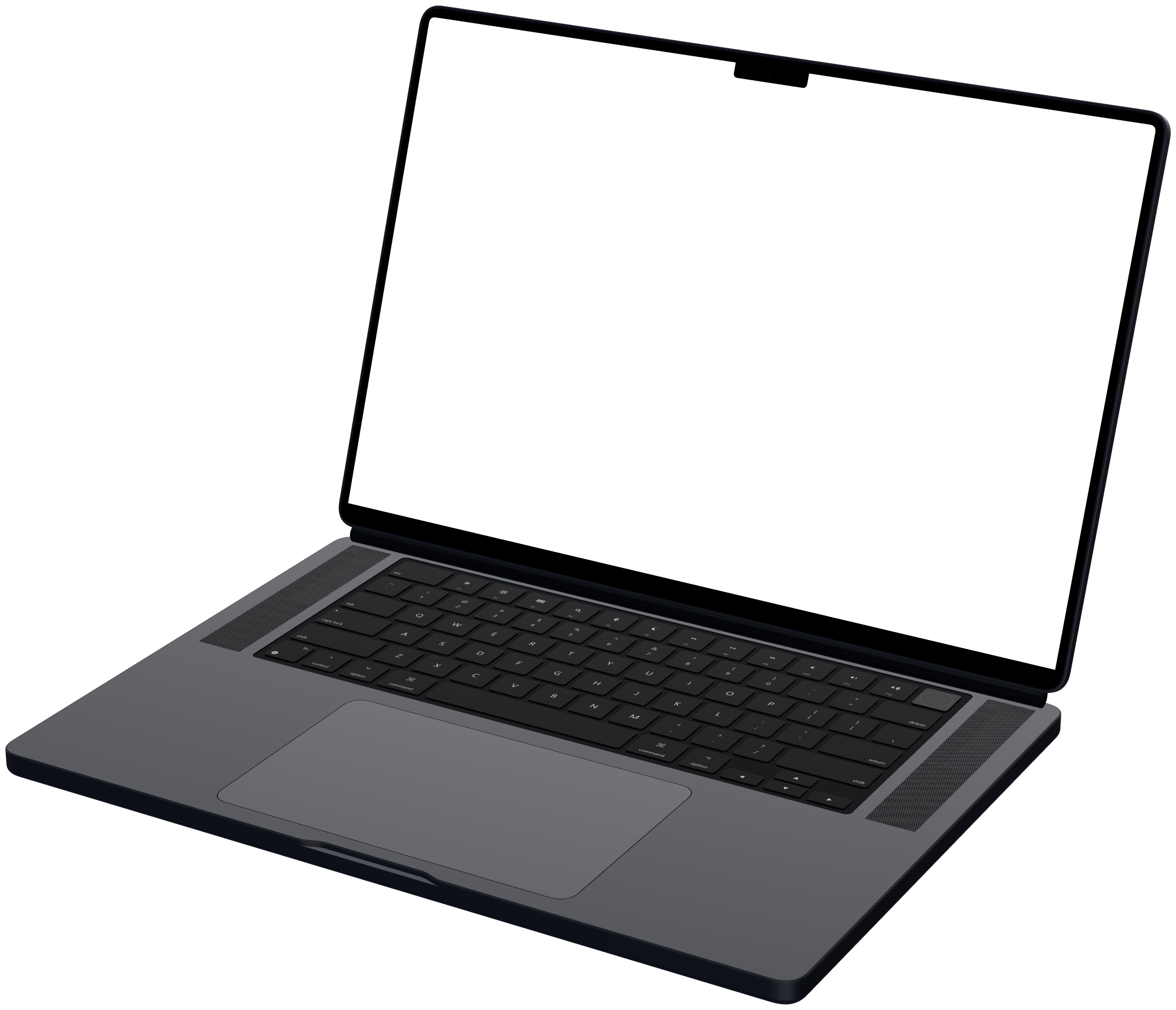
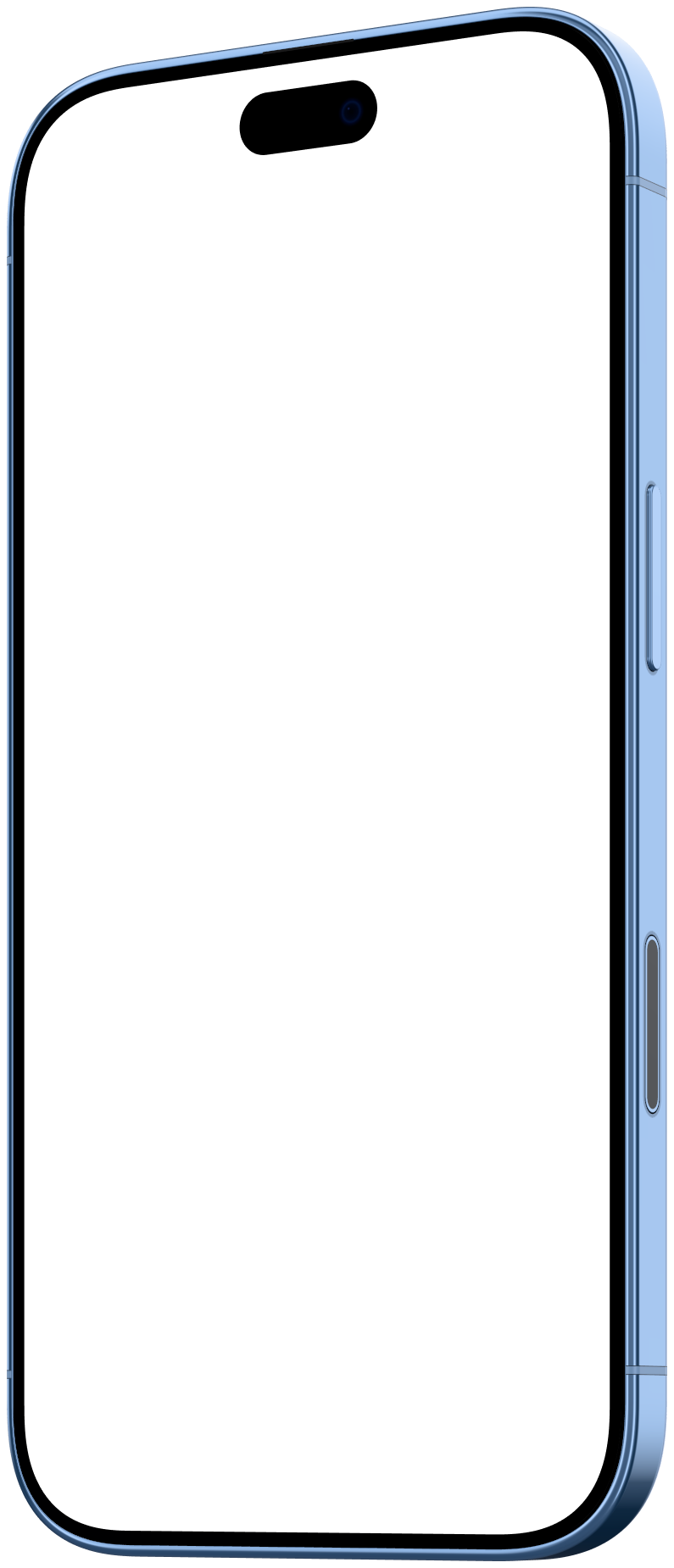
Apple iPhone 16 Pro mockup
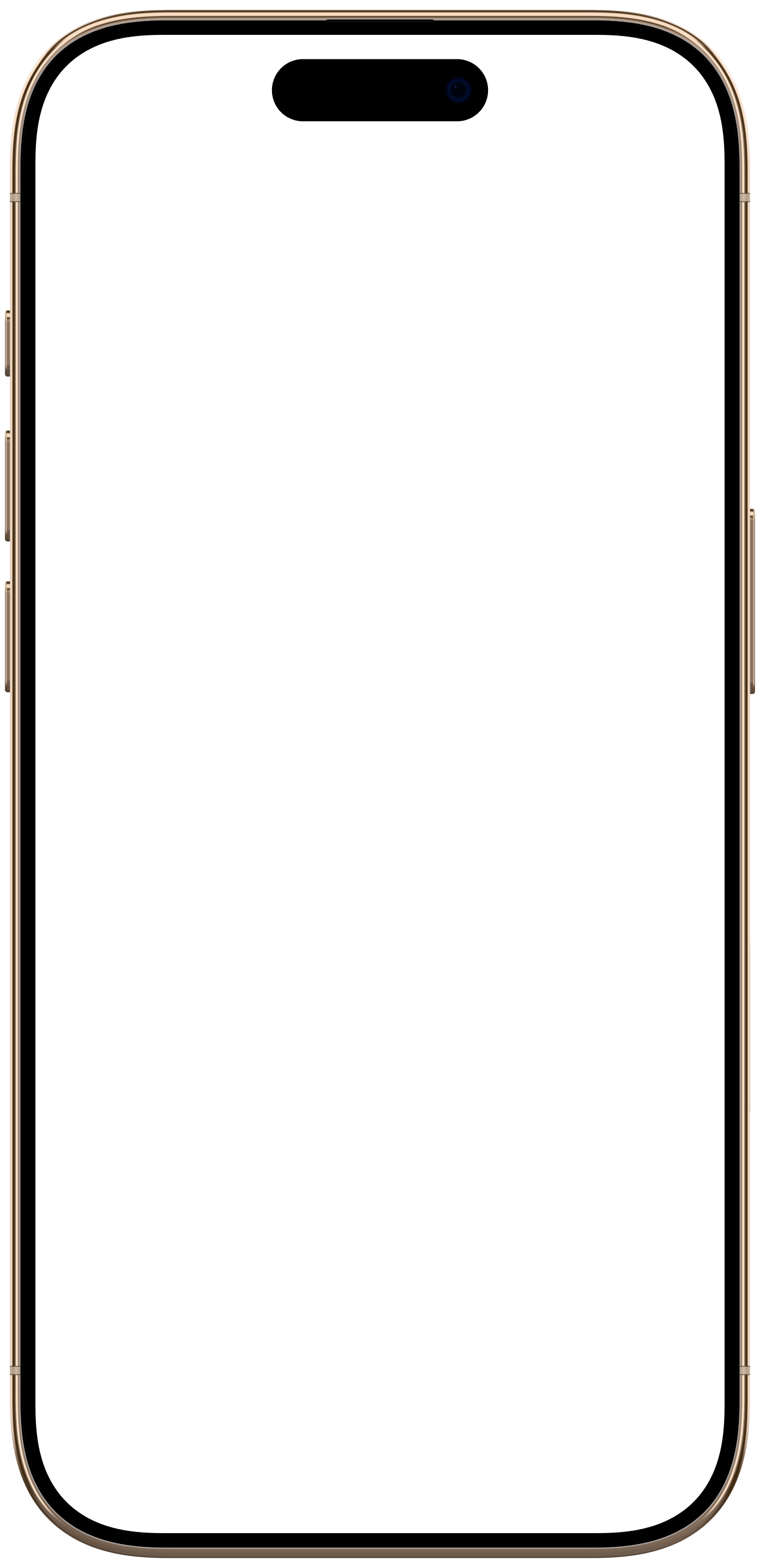
Mockya frames your screen recording in a rendered Apple iPhone 16 Pro, in Front, Left and Right angles. Its screen is 1,206 × 2,622 pixels, a 9:19.6 shape, so a recording of that size or shape fills the glass exactly. Export MP4, WebM, GIF or PNG up to 4K, in several sizes at once, with no watermark.
- Native resolution
- 1,206 × 2,622
- Screen shape
- 9:19.6
- Angles
- 3
- Released
- 2024
What angles does the iPhone 16 Pro mockup come in?
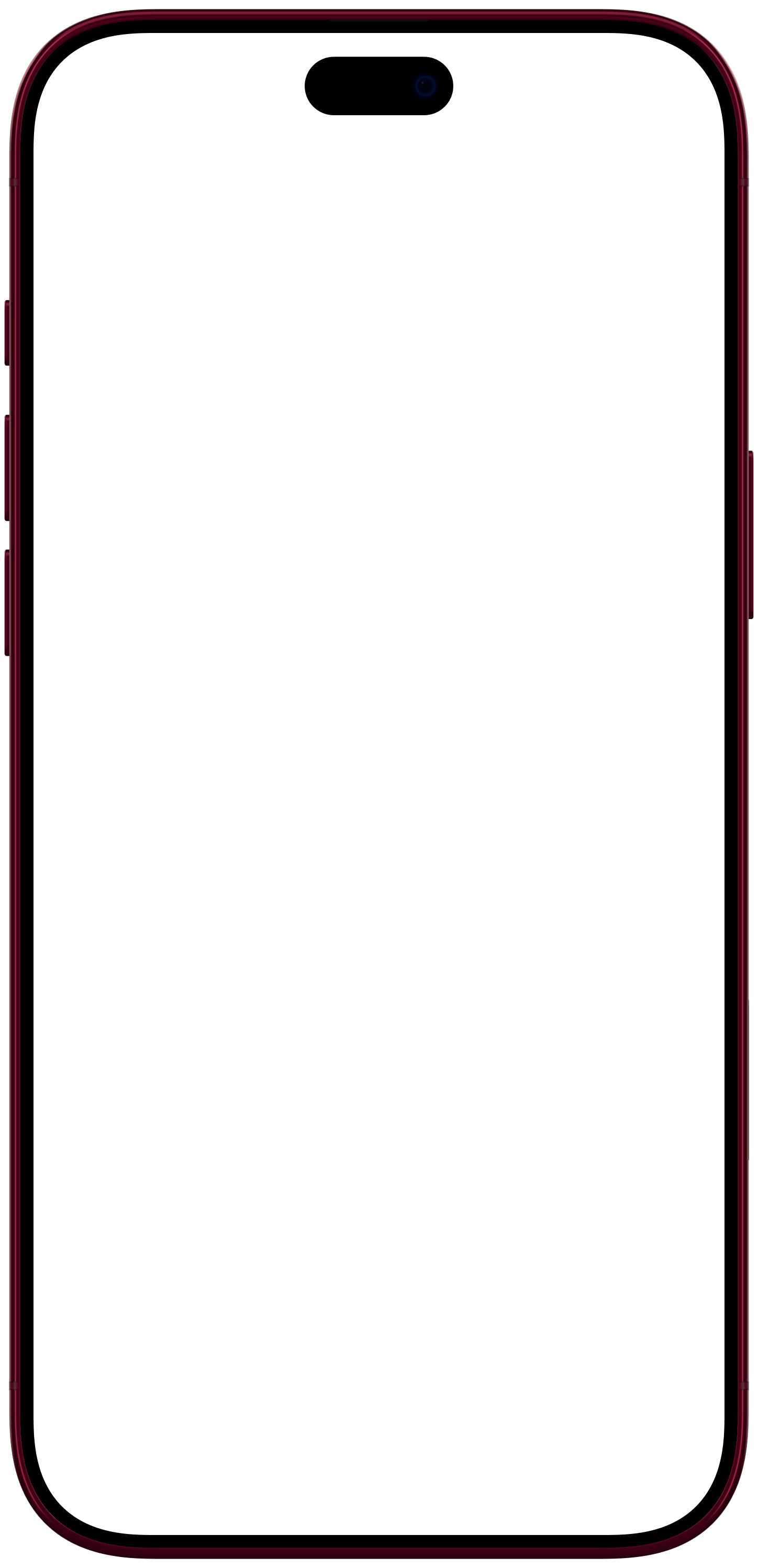
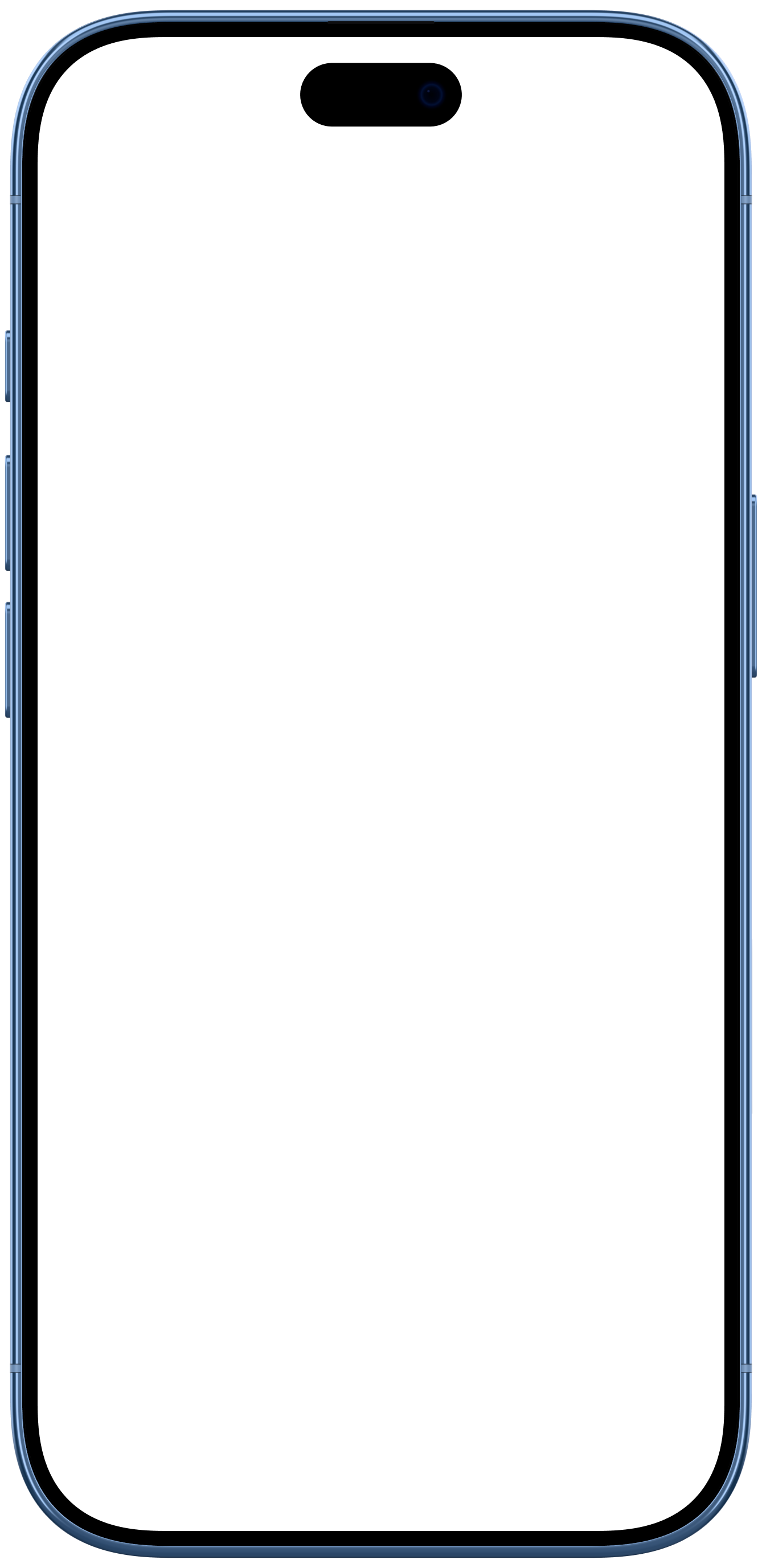
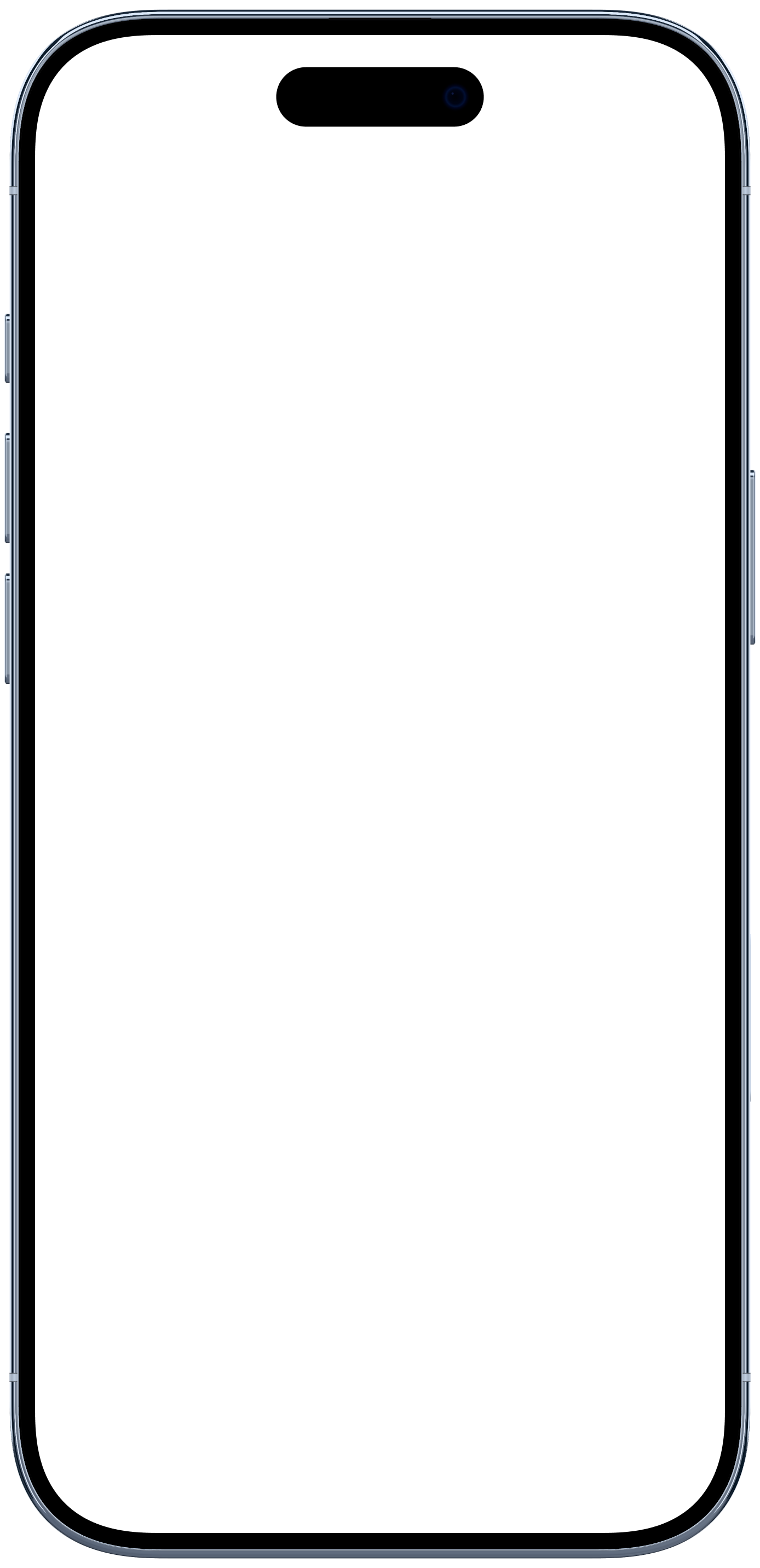
Front, Left and Right, each a separate render of the device rather than the front view skewed. Your recording is mapped into each one's screen in perspective.
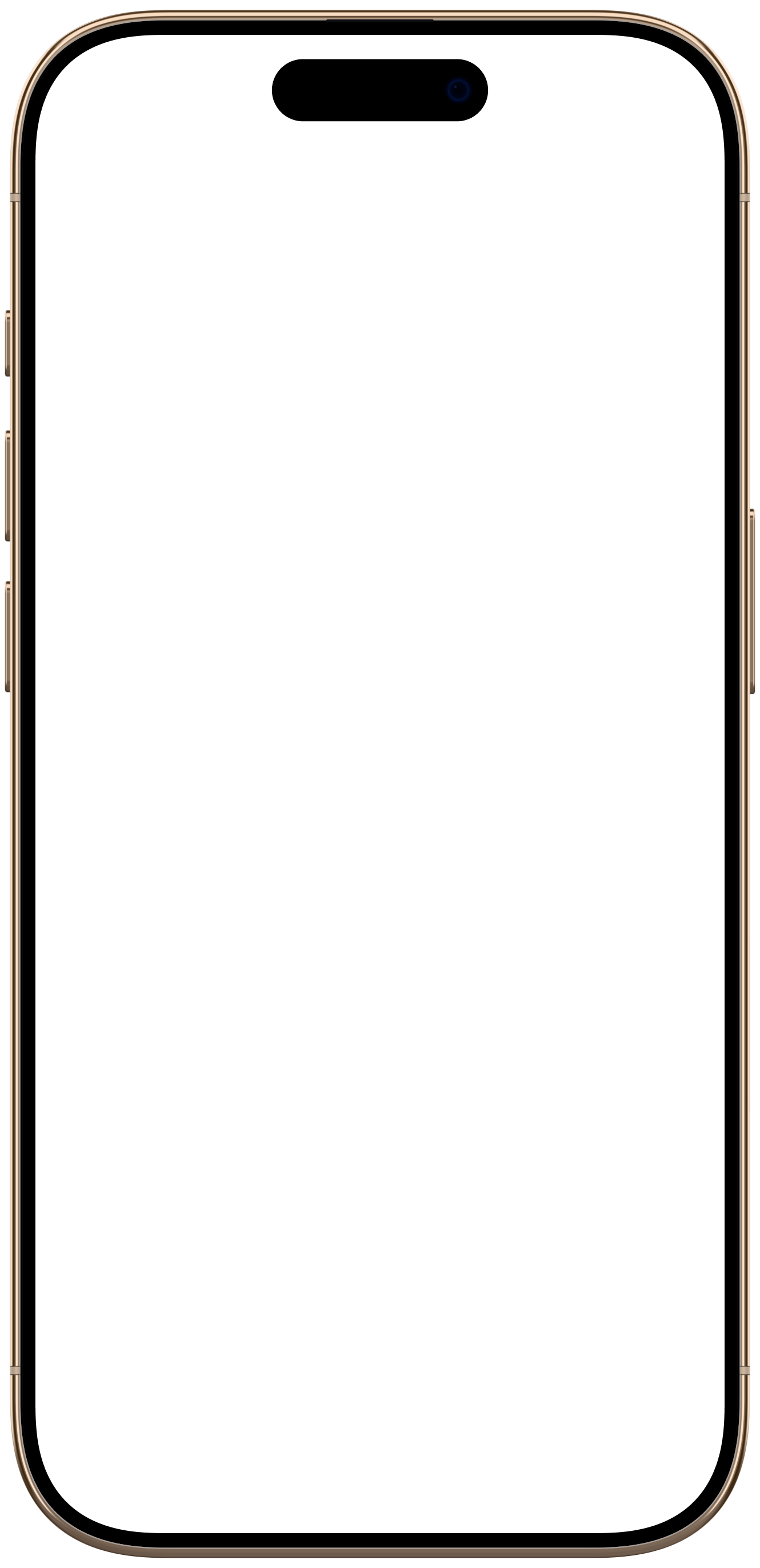 FrontUse this angle
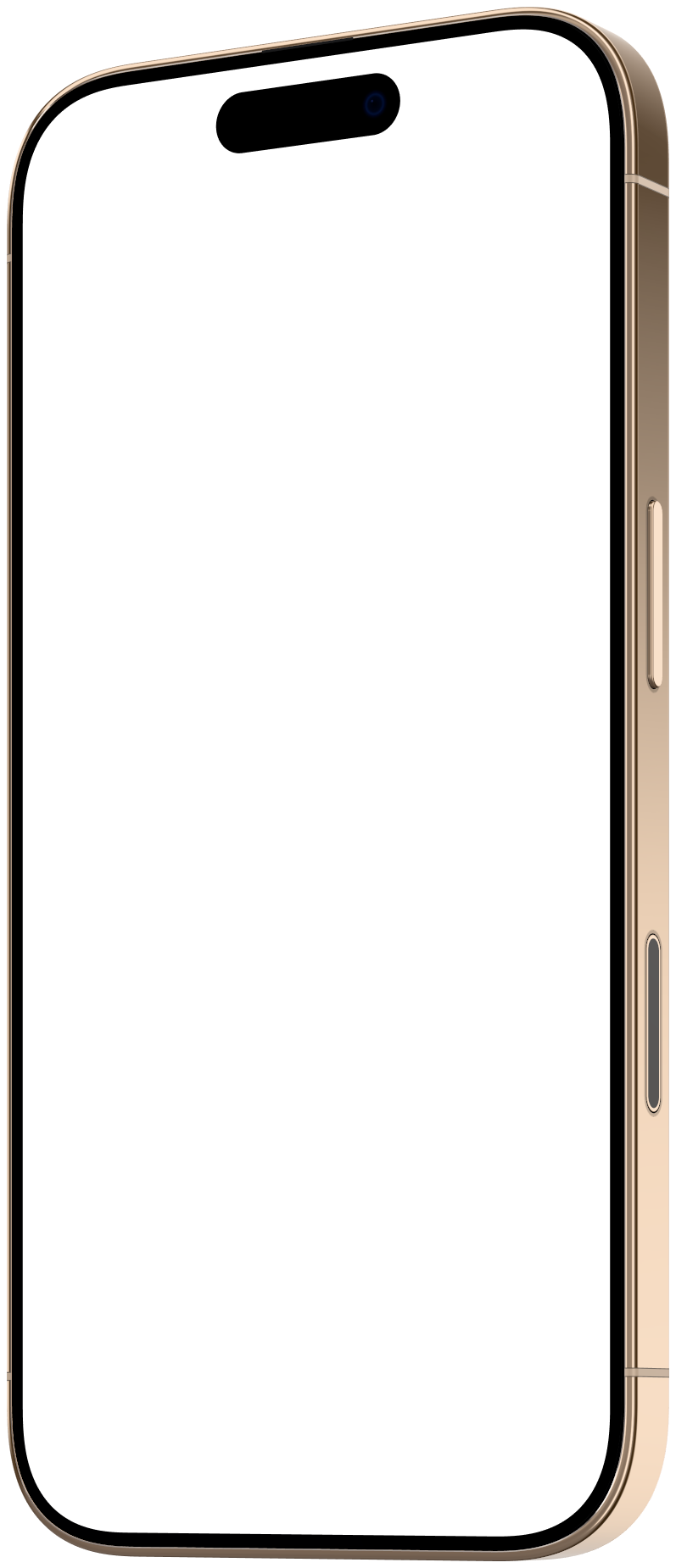 LeftUse this angle
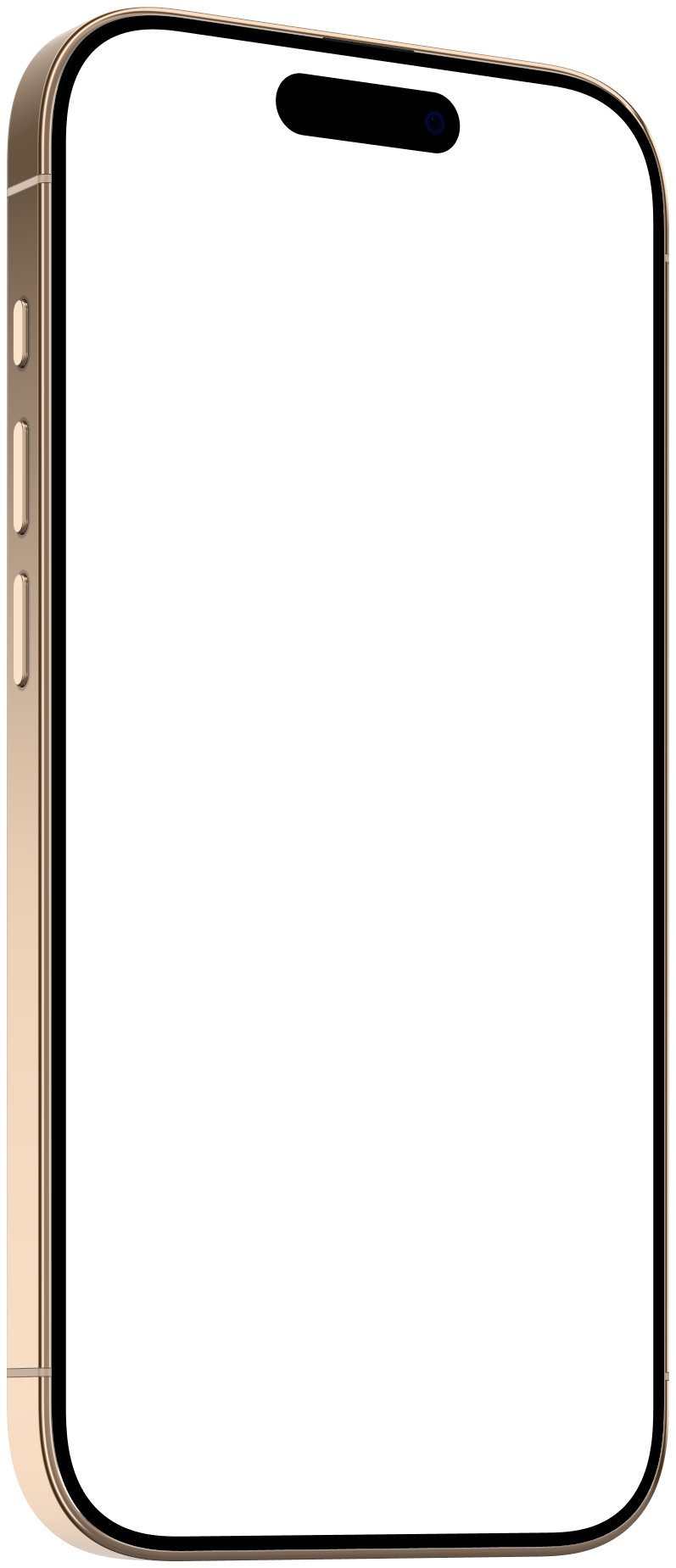 RightUse this angle
What size should I record for the iPhone 16 Pro?
Record at 1,206 × 2,622, the panel's native resolution, or any size with the same 9:19.6 shape. Here is how large the screen lands on the canvases that suit it, at the studio's default framing.
| Canvas | Screen at 1× | Screen at 2× | A native recording is sharp at |
|---|---|---|---|
| 9:16 · 1,080 × 1,920Stories, Reels, TikTok | 749 × 1,628 | 1,498 × 3,256 | 1×, upscaled at 2× |
| 4:5 · 1,080 × 1,350Instagram, LinkedIn | 495 × 1,076 | 990 × 2,152 | 1× and 2× |
| 1:1 · 1,080 × 1,080Feed post | 375 × 815 | 750 × 1,630 | 1× and 2× |
What if my recording is a different shape?
A 1080 × 1920 (9:16) clip is wider than the iPhone 16 Pro's 9:19.6 screen. With Fill, the default, Mockya trims about 18% of its width, evenly from both sides. With Fit, the whole clip shows, with bars where the shapes differ.
Does a bigger recording help?
Only up to the size the screen is drawn on the canvas, shown in the table above. Past that, extra pixels are scaled away. Zooming in on the device in the studio draws the screen larger, and raises what it can use.
How do I record my iPhone screen for this frame?
- 1
Add Screen Recording to Control Center, turn on Do Not Disturb, and close anything you don't want in shot.
- 2
Open Control Center, tap the record button and wait out the three-second countdown, then use your app.
- 3
Tap the red indicator at the top of the screen to stop. The clip saves to Photos; AirDrop it to your computer.
Recording from the iOS Simulator
xcrun simctl io booted recordVideo --codec=h264 demo.mp4Records the simulated iPhone at its full resolution. Press Control-C to stop.
Set the clock to 9:41 and fill the battery before you record. In the Simulator, xcrun simctl status_bar booted override --time 9:41 does it for you.
Which other iPhone frames are there?


iPhone 16 Pro mockup questions
What is the Apple iPhone 16 Pro screen resolution?
1,206 × 2,622 pixels, a 9:19.6 shape. Mockya's Apple iPhone 16 Pro frame maps your recording to exactly that panel, under the glass and never past the bezel.
What size should I record for a Apple iPhone 16 Pro mockup?
1,206 × 2,622, or any recording with the same 9:19.6 shape. 9:16 at 1× draws the screen at 749 × 1,628, so a native recording is sharp at 1×.
Which angles does the Apple iPhone 16 Pro mockup have?
Front, Left and Right. Each is its own rendered view of the device, and you switch between them in one click without re-placing anything.
Can I use the Apple iPhone 16 Pro mockup commercially?
Yes. Everything you export from Mockya can be used commercially, with no attribution and no watermark. The device frame itself can't be resold on its own as a mockup or template.
Your recording, in the iPhone 16 Pro.
Drop in a screen recording, pick a device and export every size you need. Editing is free, and new accounts get 25 credits.
Your files never leave your machine.