Questions, answered
Mockya is a browser-based studio that frames screen recordings in realistic devices and exports every social size at once. Editing is free; you pay per export with credits that never expire. Files never leave your computer and exports carry no watermark. Every other question is answered below, by topic.
The basics
What is Mockya?
Mockya is a browser-based studio that puts a screen recording inside a realistic device frame and exports it as a polished video. Drop in a recording, pick a device and an angle, choose your sizes and export. There is no timeline to learn and nothing to install.
Who is Mockya for?
Founders, indie developers, designers and marketers who need a product video for a launch, an App Store page, a landing page or a social post, and would rather not open a video editor or a 3D tool to make one.
Do I need to install anything?
No. Mockya runs in current Chrome, Edge, Safari and Firefox on desktop. Open the studio and start; there is no download, plugin or extension.
Which browsers work?
Current Chrome, Edge, Safari and Firefox on desktop. Older browsers get a clear notice, not a broken canvas.
Do I need to make an account to export?
Not to edit, preview or save PNG stills. You sign in when you export a video, or a still with a paid extra, and a new account starts with 25 free credits. No card needed.
Does Mockya work on a phone?
The studio is built for a desktop browser, where there is room for the canvas and the controls. Record on your phone, then move the file to a computer to frame it.
Credits and pricing
How do credits work?
You buy a pack once and spend from it as you export. The price is shown beside the Export button before anything renders, and the export dialog breaks it down line by line. Credits never expire, and a failed or cancelled export costs nothing.
How much does an export cost?
A standard export, a 20-second clip at 1× on one canvas as an MP4, is 20 credits. The same clip in four sizes is 50, and at 2× (the 4K class) it is 50. Length is charged at 1 credit per 2 seconds, rounded up, and the exact total shows beside the Export button before anything renders.
How much do credits cost?
Packs are bought once: Starter is $5 for 60 credits, Creator is $8 for 125 credits, Studio is $14 for 350 credits. That puts a standard export between $0.80 and $1.67.
Is Mockya a subscription?
No. There is no monthly plan. You buy credits once, from $5, and they never expire.
Is anything locked to a bigger pack?
No. Every pack opens every feature, every device and every size. A bigger pack only makes each credit cheaper.
What is free?
Editing and live preview with every control, every device and every angle, trim, loop, sound and text layers, every background including your own, and plain PNG stills at any size. Failed or cancelled exports cost nothing.
Do credits expire?
No. Credits you buy and the free credits you get at sign-up stay on your account until you spend them.
What happens if an export fails?
It costs nothing. Credits are only spent once an export finishes, so a failed or cancelled export never touches your balance.
Files and privacy
Does my recording get uploaded anywhere?
No. Your browser reads and renders the file on your machine. Nothing goes to a server.
What formats can I bring in?
MP4, MOV and WebM, plus PNG, JPG and WebP stills. If your browser plays it, Mockya can frame it.
Will my clip stay in sync with audio?
Yes. Source audio carries through to the export unless you mute it.
Can I trim my recording in Mockya?
Yes. The media card opens a filmstrip of the clip with a handle at each end. Drag the handles, or press I and O at the playhead, to cut the start and end. Exports only render the part you kept.
Can Mockya convert a MOV to MP4?
Yes. Drop a MOV into the studio and export it as MP4. If you only need the conversion without a device frame, the free MOV to MP4 converter does it in your browser, without an upload and without credits.
Exports
What comes out the other end?
MP4 or WebM at 24, 30 or 60 fps, GIFs at up to 30 fps, and PNG stills at any size. Transparent backgrounds come out in PNGs and GIFs.
What resolution are exports?
Each canvas exports at 0.5× for drafts, 1× (1920 × 1080 for a 16:9 canvas) or 2×, which reaches 4K.
Can I export several sizes at once?
Yes. Tick the extra canvases in the export dialog, 16:9, 1:1, 4:5, 9:16, 2:1 or 4:3, and they render in one go. Each one is composed for its own frame rather than cropped from the first, and each extra canvas costs half the first.
Are exports watermarked?
Never. No export carries a watermark, whether it is free, paid or made with your sign-up credits.
Can I export with a transparent background?
Yes, in PNG stills (+4 credits) and GIFs (+10 credits). MP4 has no transparency, and transparent WebM is not available yet.
Which frame rates can I export?
MP4 and WebM export at 24, 30 or 60 fps; 30 fps and below cost nothing extra, and 60 fps adds 6 credits. GIFs are kept at 30 fps and 1×.
Devices
Which devices does Mockya have?
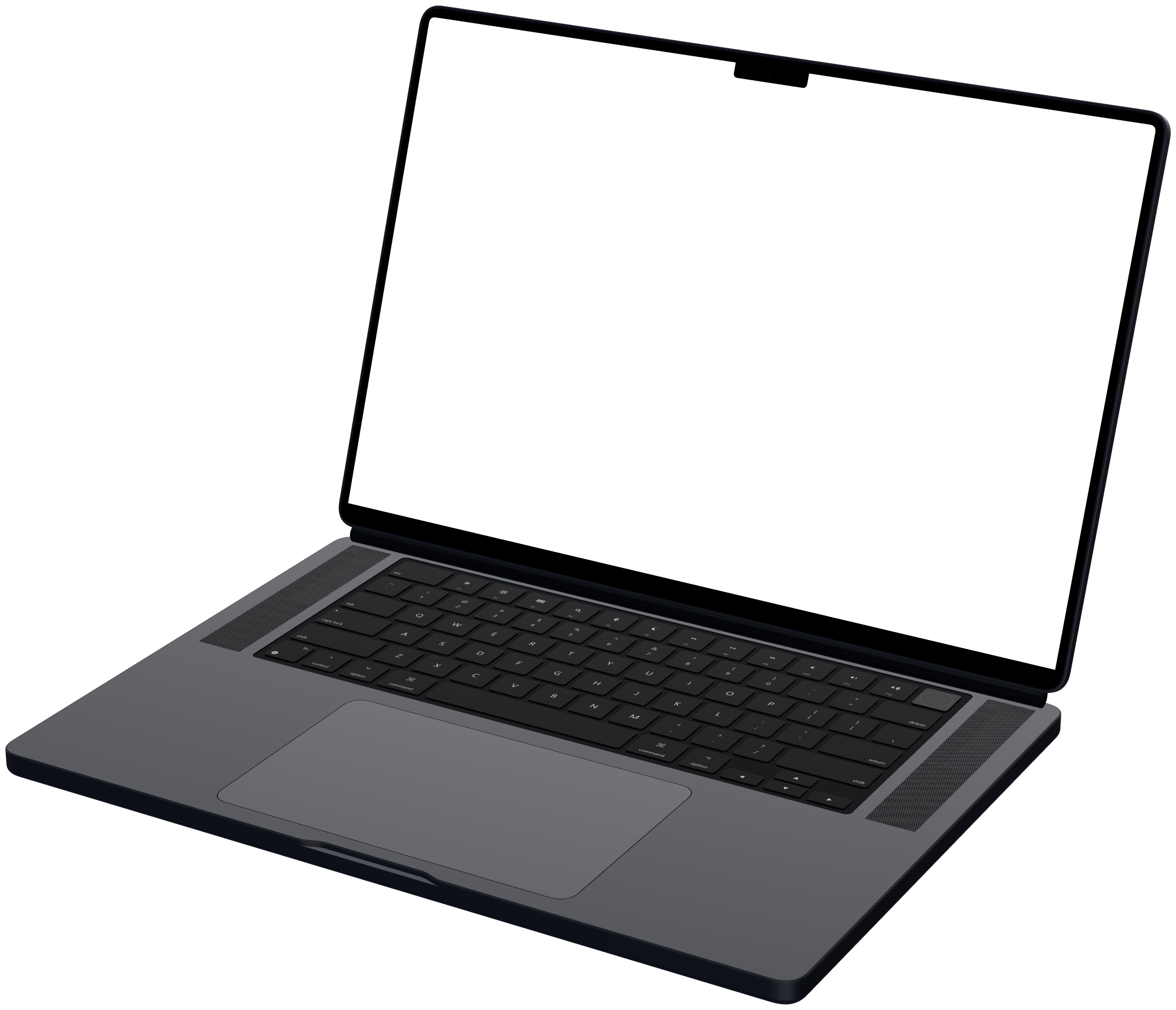
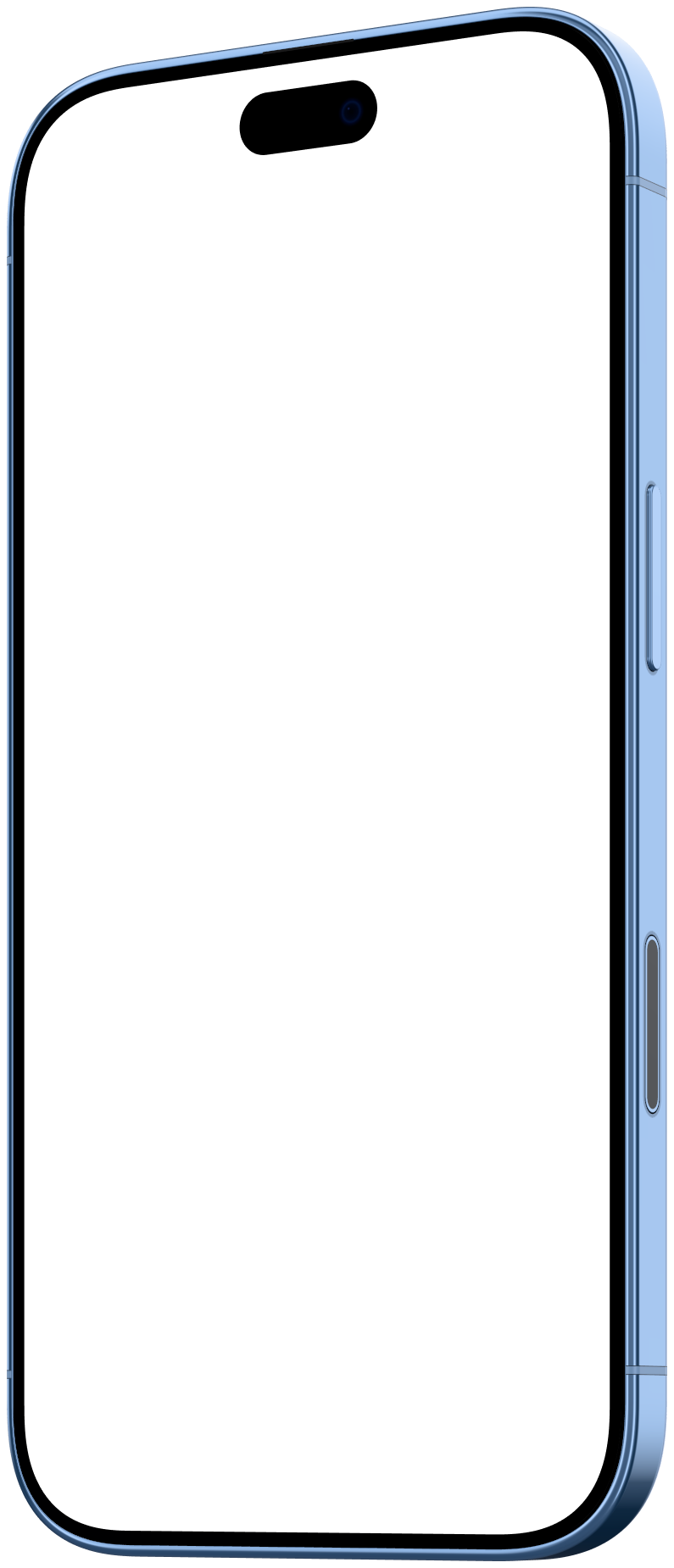
23 frames: iPhone 16, 17 and 18 models and iPhone Air, iPad Pro 11 and 13 inch, MacBook Air 13 and MacBook Pro 16, Google Pixel 11 and 11 Pro, Samsung Galaxy S24, S25 and S26 Ultra, the Apple Pro Display XDR and Studio Display, and a browser window in light and dark.
How accurate are the device frames?
Each frame is rendered from the maker's published dimensions, with the screen opening measured to the pixel. Your recording sits under the glass at the panel's native aspect and never runs past the bezel.
Can I animate the device itself?
Not with keyframes, on purpose. Pick an angle and your recording plays inside it. For camera moves, a timeline tool suits you better.
What if my recording doesn't match the screen's shape?
By default Mockya fills the screen (Fill) and trims the overflow evenly from the edges. Switch to Fit and the whole recording shows, with bars where the shapes differ. Recording at the device's native aspect avoids both.
Can I request a device?
Yes. Email hello@mockya.app with the device you need. New devices are added to the library as they launch.
Licence
Can I use the exports commercially?
Yes, every export, including client work and paid listings. The output is yours.
Do I need to credit Mockya?
No. There is no attribution requirement and no watermark. A mention is always welcome, never required.
Can I use exports in App Store and Google Play listings?
Yes, Mockya puts no limit on it. Store rules are separate, so check Apple's and Google's own guidelines for screenshots and app previews before you upload.
Your recording, launch-ready in a minute.
Drop in a screen recording, pick a device and export every size you need. Editing is free, and new accounts get 25 credits.
Your files never leave your machine.